When a recruiter schedules an interview, you receive an email notification and the interview details appear in your candidate dashboard.
Who it's for
Candidates whose application has moved to the Interview Scheduled stage.
Before you start
- Check your email for the interview confirmation from the company's careers portal.
- Ensure your contact details (phone, email) are up to date in your candidate profile.
Steps
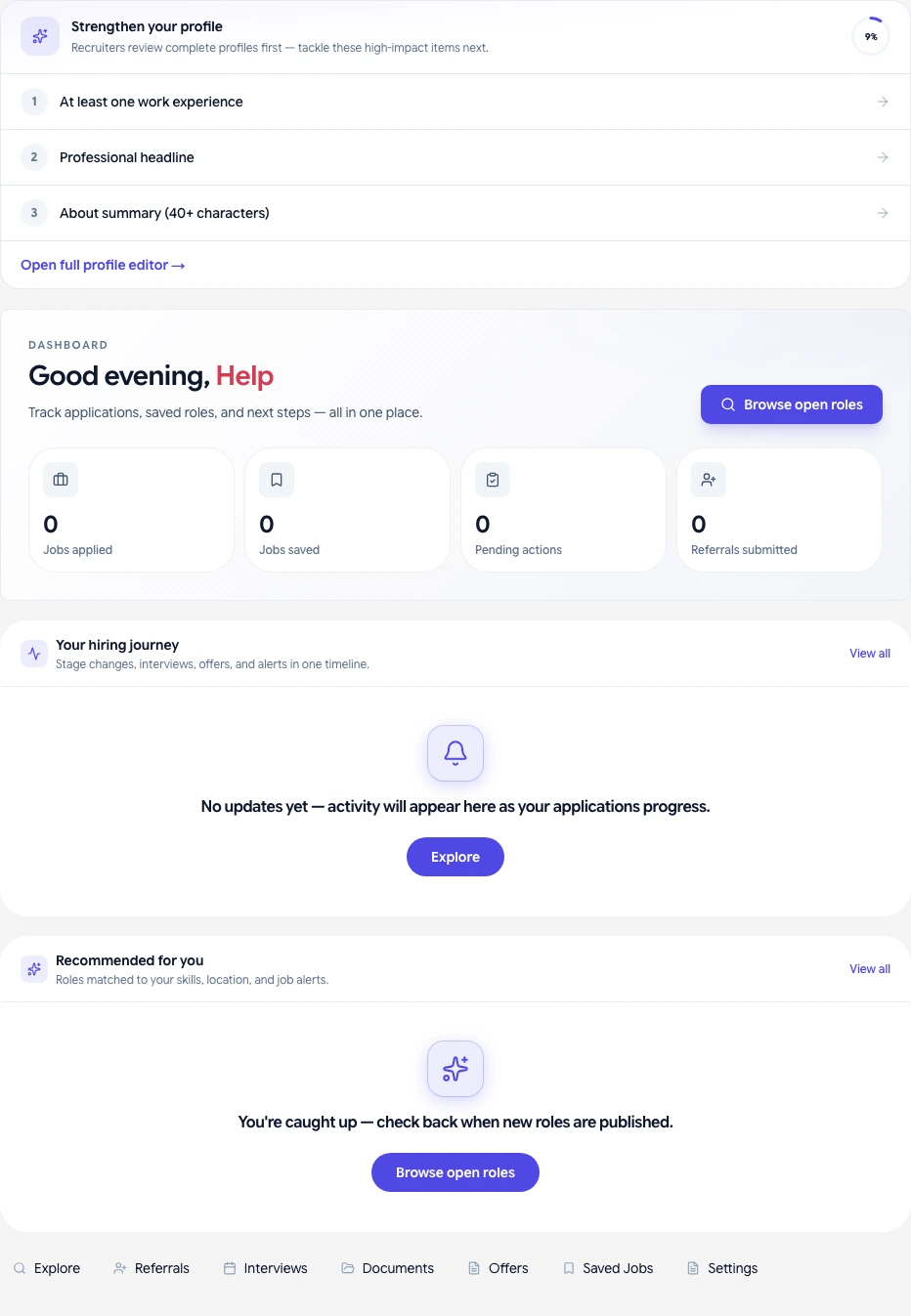
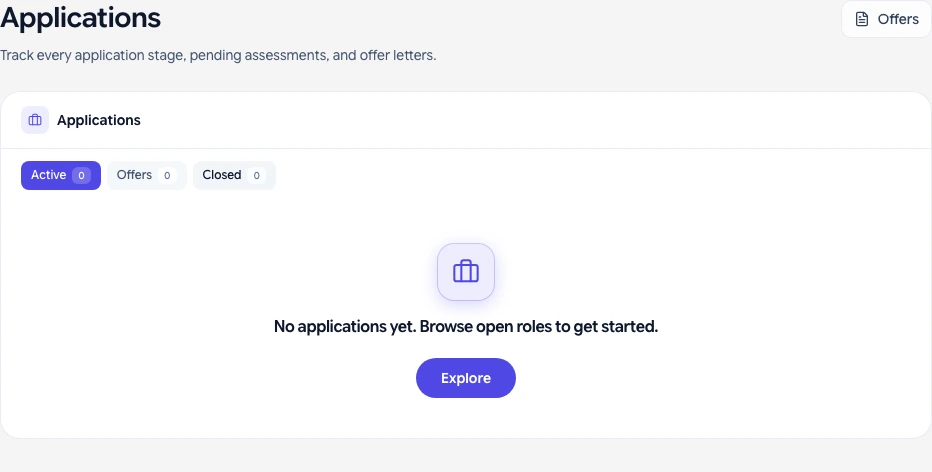
- Open your candidate dashboard and go to My Applications → Upcoming interviews.
- Review the interview date, time, format (video call, phone, or in-person), and any instructions from the recruiter.
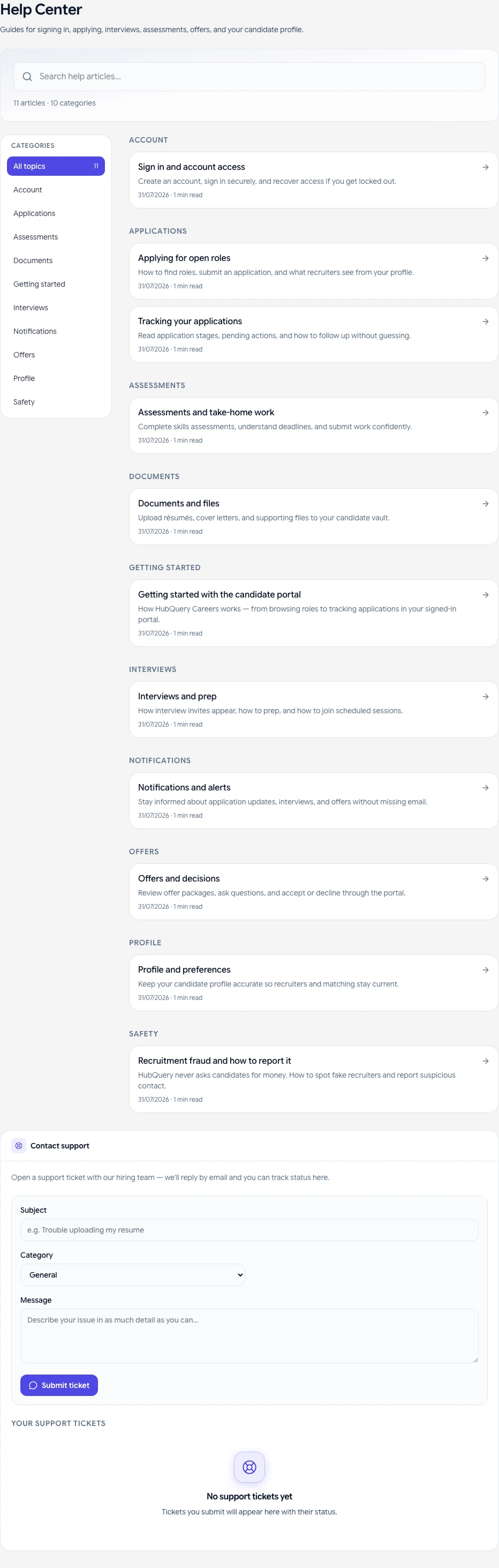
- If you need to reschedule or have a conflict, reply to the invitation email or contact careers support from Help on the careers portal.
- Prepare for the interview: review the job description, company background, and any materials sent by the recruiter.
- Join or attend at the scheduled time. After the interview, your application status will be updated by the recruiter.
What you should see
- Interview date, time, and format in your dashboard.
- A reminder email sent 24 hours before the interview (when enabled by the company).
- Status update after the interview: Under Review or Offer Sent.
If something goes wrong
- No interview details visible — Refresh your dashboard; check for the recruiter email in your inbox and spam.
- Need to reschedule — Reply to the invitation email or open Careers Help → Submit a support request as soon as possible.
- Interview cancelled — You will receive a cancellation email. The recruiter will contact you to arrange an alternative.
Related guides
- Managing your job applications as a candidate
- Signing your offer letter