
Before you start
Sign in to HubQuery with the account that should perform this task. If you manage more than one role (Agent, Host, Landlord), switch to the correct dashboard view from the header before continuing. Turn on notifications under Dashboard → Settings → Notifications so you do not miss important updates.
The dashboard is your home base after you log in. Here’s how it’s organised so you can find everything easily.
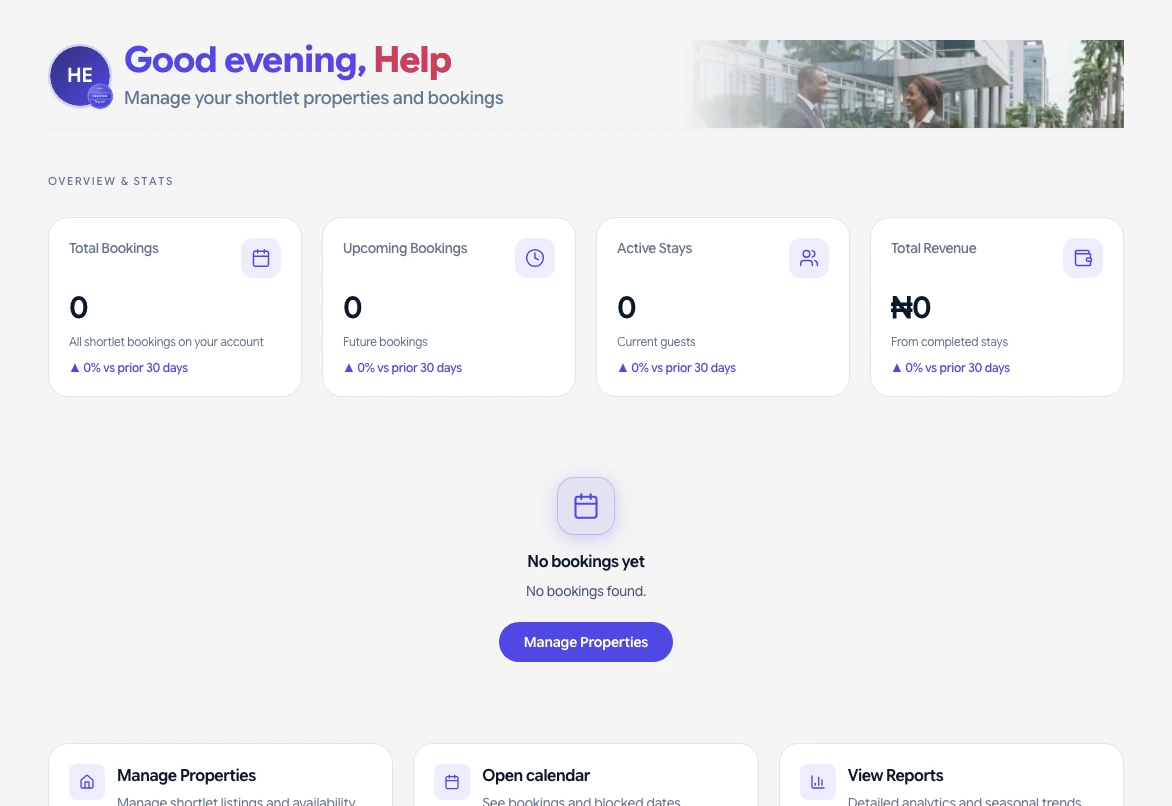
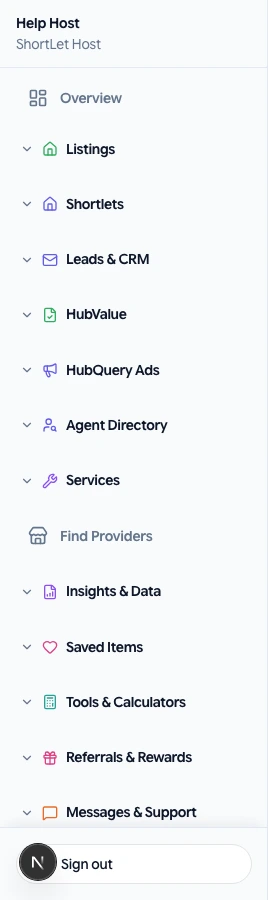
Left sidebar (main menu)
On the left you’ll see a list of sections, for example: Overview, Listings, Leads, CRM, Host, Wallet, Settings. The exact items depend on your role (agent, owner, host, etc.). Click any item to open that section.
Top bar
You’ll see your profile picture, notifications, and sometimes a country or language switcher. Click your photo to open account and logout.
Main area
The middle of the screen shows the content for the section you chose—e.g. list of listings, pipeline, calendar, or wallet. Use the search or filters on the page to find specific items.
If you can’t find something, use the Help Center and search for the feature (e.g. “wallet”, “listings”, “CRM”). See also What each menu does.
If something goes wrong
If a screen does not load or a button is missing, refresh the page, sign out and back in, and confirm you are using the correct role. Check that your country hub supports the feature. For billing or access issues, open Help → Submit a request with your account email, a short description, and a screenshot if possible. We aim to respond as soon as we can.