
HubQuery Messages keeps conversations with leads, guests, tenants, hosts, and support in one place. This guide explains the inbox, how to reply, and how notifications work.
Who it's for
Anyone with a HubQuery account who receives or sends messages: agents (HubLeads inquiries), hosts (booking questions), guests and tenants (stays and tenancies), landlords, service pros, and buyers contacting listers.
Before you start
- Sign in at the HubQuery website or mobile app with the account that should receive replies.
- Turn on notifications under Dashboard → Settings → Notifications so you do not miss new messages.
- For listing-related chats, know which property or booking the thread is about (shown in the message header when available).
Steps
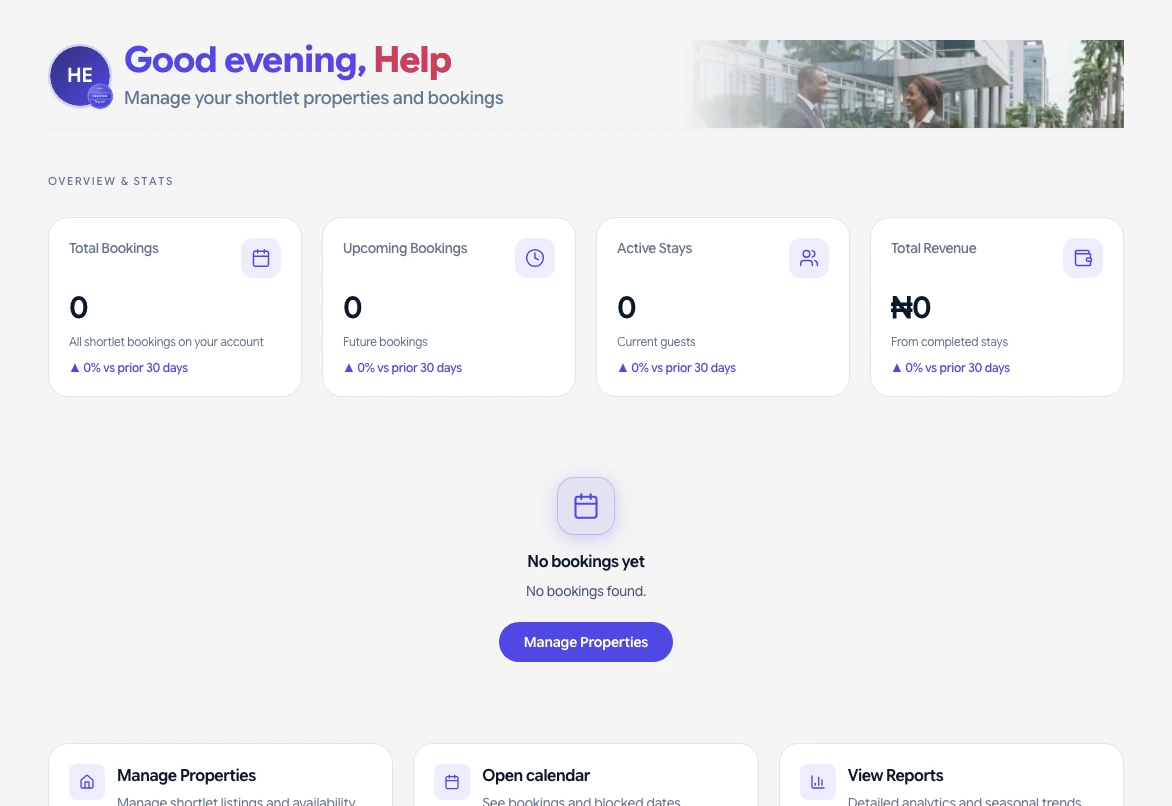
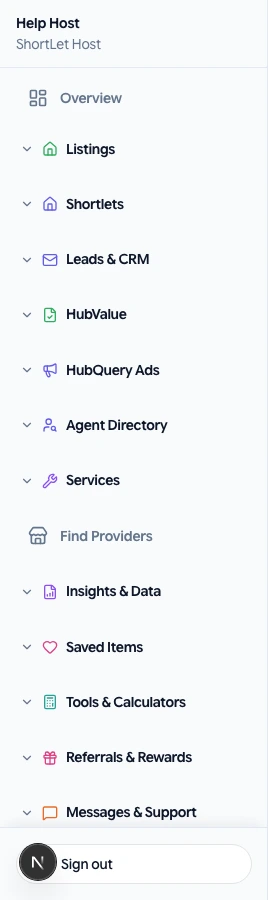
- Open Dashboard → Messages (or tap Messages in the mobile app). You will see a list of conversations sorted by most recent activity.
- Click a conversation to read the full thread. Older messages appear above; the newest at the bottom.
- Type your reply in the message box at the bottom. Keep replies clear and professional—many leads come from HubLeads or listing inquiries.
- Click Send. The other party receives an email and/or in-app alert depending on their notification settings.
- To start a new message (where the product allows it), open a listing, booking, or lead and use Message or Contact; the thread then appears in your inbox.
- Review notification badges on the dashboard top bar or app icon. Open Settings → Notifications to choose email, in-app, or push for message categories.
What you should see
- A list of threads with preview text, contact name, and timestamp.
- Inside a thread: sent and received messages with delivery status where shown.
- Context links to the related listing, trip, lease, or HubLeads lead when HubQuery attaches them.
- Email copies of new messages if you enabled email notifications.
If something goes wrong
- No Messages menu – Confirm you are signed in with the correct role (Agent, Host, etc.). Switch role from the dashboard header if you have more than one.
- Reply not sending – Check your internet connection, refresh the page, and try again. Avoid special characters that might break older browsers.
- Not receiving alerts – Open Dashboard → Settings → Notifications and enable message alerts. On mobile, allow push in the phone’s system settings.
- Chat banner while you are already in Messages – In-app pop-up banners for new chat messages are hidden while you are on Dashboard → Messages (or Platform Messages). The conversation list still updates. You will still get email or push if those are enabled.
- Wrong conversation or missing thread – Search Help for the listing or booking ID and contact support with your account email and a screenshot.
Related guides
- How to use HubLeads (your lead inbox) – For agent inquiries from listings.
- Notifications: email, in-app, and mobile push – Fine-tune alerts.
- Booking flow: search to payment success – Guest messaging around stays.
- How to get help – Submit a HubDesk ticket if messaging fails.